


TV (Samsung) Remote Control
4.511.87K Reviews
App Specs
- Version
- 2.12.0release
- Updated On
- License
- Free
- Downloads
- 10,000,000+
- Developer
- npe
- Categories
- Video Players & Editors
- Platform
- Android
Screenshots
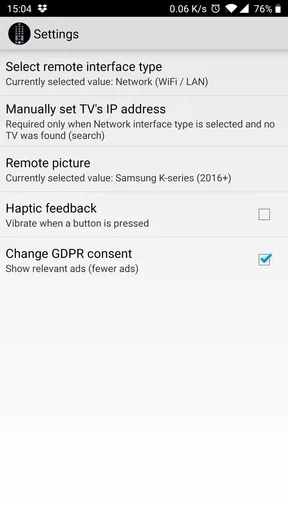
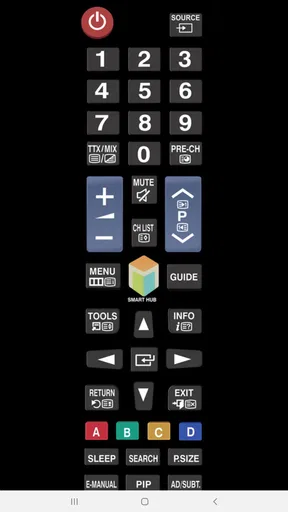
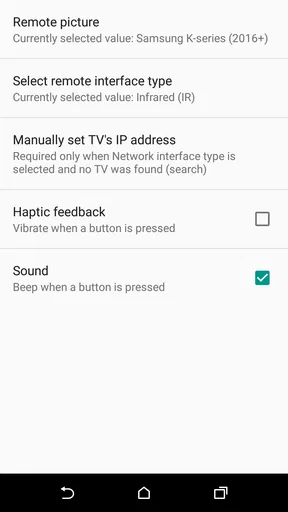
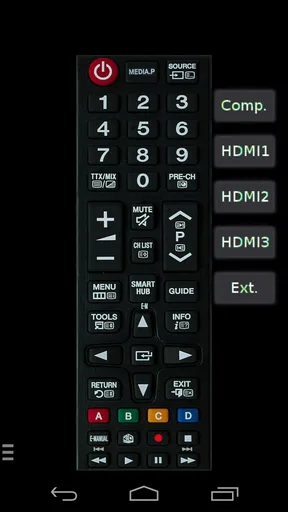
 Analysis by AppCompare
I reach for a phone remote most often when the usual remote has vanished at exactly the wrong moment: the show is paused, someone is waiting, and the cushions have swallowed the buttons again. TV (Samsung) Remote Control is aimed at that everyday problem, giving Samsung TV owners another way to handle basic controls from a phone. I see it as a useful backup rather than a replacement everyone needs. Whether it earns a place on your home screen depends on how your TV and network behave together, and on whether you prefer tapping a phone over finding the physical remote.
When pairing is the first hurdle
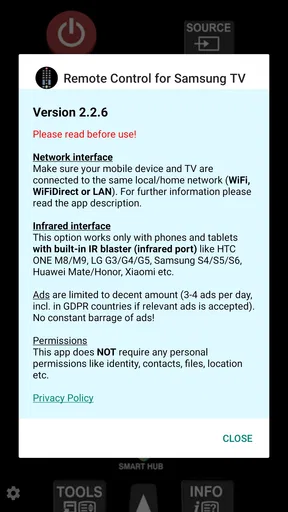
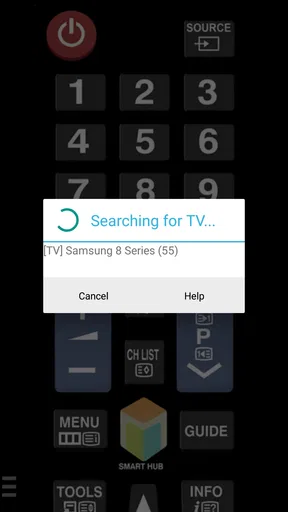
The first practical question is whether the app can communicate with your television. A common setup check is to confirm that the phone and TV are connected to the same Wi-Fi network, then keep both devices available while attempting to pair. If the TV displays a prompt asking you to allow the connection, respond on the TV itself. A phone app cannot complete that step for you if the television is waiting for approval.
That makes the first run less effortless than simply opening an app and pressing volume. If your television does not appear, check that the TV is switched on and that the phone has not quietly moved to a different network. Guest Wi-Fi or separate network bands can sometimes keep devices from seeing one another, even when both can access the internet. I would check those basics before reinstalling anything or assuming the app is broken.
The app is free, comes from developer npe, and is listed for Everyone. Its long presence in the remote-control space is reflected in its reach: it has passed 10 million installs, with an average rating of 4.5 from around 187,000 ratings. Those figures suggest plenty of people have found a use for it, but they do not guarantee a smooth pairing experience with every home network or Samsung TV setup.
Using a phone as a TV remote
I find a phone remote most useful when I want to think through how a small control change can affect a whole viewing routine: the phone is convenient, but it also becomes part of the connection between you and the TV. In this section, I’ll focus on that trade-off and why a phone-based option is best treated as a practical backup, setting up the checks that can make the first connection less frustrating.
Setup and Usability
The setup process is surprisingly straightforward. After downloading the app, it takes you through a simple pairing process. Just make sure your phone and TV are connected to the same Wi-Fi network, and you’re golden. No more fumbling with multiple remotes or trying to figure out which button does what.
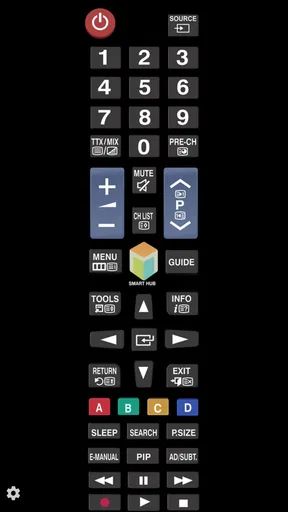
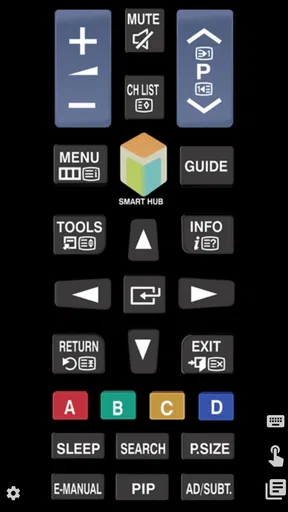
The interface is sleek and user-friendly. It mimics a physical remote, but with a few extra perks. You can easily switch channels, adjust the volume, and even access your favorite streaming services with just a few taps. The app also supports voice control, which feels like something out of a sci-fi movie. Just speak your command, and the app does the rest. How cool is that?
Worth Reading Before You Choose

Flipboard Shows What News Apps Must Do Beyond the Feed

Switching to Android Auto Means Rethinking Your Driving Routine

Google Calendar Makes a Crowded Week Easier to Manage

Ludo King Makes the Most of the Minutes Between Plans

Baby Panda World Brings Quick Play to Modern Phones, but Its Game Library Feels Busy

ESPN’s Live Game View Makes Following Close Games Easier
For a realistic example, imagine settling in to watch something after dinner and finding the TV remote missing. Once the phone and television are connected, the phone can spare you the search for routine controls such as volume or channel changes. A handy habit is to open the remote before you sit down, rather than waiting until the show is paused and everyone is asking where the remote went. If the TV is still on a setup prompt, though, you may need to use its own controls first.
Features That Stand Out
One of the standout features of the TV (Samsung) Remote Control app is the touchpad. It allows for smooth navigation through menus and apps on your TV, making it feel like you're swiping on a giant smartphone screen. This is particularly handy for apps like Netflix or YouTube, where you need to scroll through countless options.
Another handy feature is the quick access to apps. You can customize shortcuts for your most-used applications. Whether you're a fan of Hulu, Disney+, or Prime Video, you can jump right in without the usual hassle of navigating through menus.
Those controls are most valuable when you are browsing rather than watching. A touch surface can make moving around a screen full of titles feel more natural than repeated directional-button presses, while a shortcut can save a few steps when you return to the same TV app regularly. I would still keep the television’s own remote within reach for tasks that need a familiar physical button or when the phone is being used by someone else.
There is also a useful trade-off in how you choose to browse. A phone gives you a larger, more flexible surface for swiping, but it is not always as quick as pressing a tactile button without looking. If you are navigating a long menu, the touchpad may feel convenient; if you need to change volume in the dark, physical controls can be easier to locate by touch. I would treat the app as another control style, not assume it makes every interaction better.
Performance and Reliability
In terms of performance, the app is pretty responsive. Commands are executed almost instantly, which is crucial when you’re trying to pause that thrilling movie scene. I didn’t experience any lag or crashes during my time with it, which is always a bonus.
When a command stops getting through, I would first check whether the phone is still on the same Wi-Fi network as the TV and whether the TV remains switched on. Closing and reopening the remote, then reconnecting if needed, is a sensible next step before changing network settings. If only some commands seem unreliable, try a basic function such as volume before judging the whole connection; that helps distinguish a lost connection from an issue with a particular screen or action.
It is also worth thinking about who else needs the television while you use the phone. A phone remote is handy when one person has the device nearby, but it becomes less convenient if that phone is charging in another room, belongs to a guest, or is needed for a call. For shared viewing, the physical remote remains the simpler common option because nobody has to ask for someone else’s phone.
Battery usage is minimal, so you don’t have to worry about the app draining your phone while you binge-watch your favorite series. I also appreciated the fact that the app doesn’t bombard you with ads, making for a smooth and uninterrupted experience.
If the TV still cannot be controlled after basic reconnection checks, the app may not be the cause. A weak or disrupted home network, a television that has lost power, or an on-screen prompt waiting for input can all interrupt the routine. I would verify that the TV responds to its physical controls and that other devices are online before spending time repeatedly pairing the phone. If the TV itself is unresponsive, troubleshooting the television is more useful than reinstalling a remote app.
Who will get the most from it
This is a good fit for someone who owns a compatible Samsung TV, keeps a phone nearby, and wants a convenient fallback for everyday adjustments. It is especially appealing in a household where the remote tends to migrate between rooms, or where scrolling through TV menus is more comfortable on a touch surface. People who mainly use a few familiar TV apps may also appreciate being able to reach their usual viewing choices without first hunting through the television’s menus.
I would be less enthusiastic about recommending it as the only remote. A phone can run out of charge, be carried away, or be in use for something else, and a touchscreen does not give the same tactile certainty as physical buttons. It is also not a solution for someone whose priority is controlling equipment beyond the Samsung TV. A universal remote may be a better fit for a setup involving several devices, while the TV’s original remote is the straightforward choice for anyone who values dedicated buttons and dependable access without pairing.
Compared with other options in the video-player and editor app category, this is a deliberately narrow utility rather than a tool for making or editing video. Its appeal is not a broad collection of media features; it is the convenience of controlling a television from a phone. That focus is useful if remote control is exactly what you need, but it will not help someone looking for playback tools on the phone itself.
What to expect before installing
The app is free, and the current version is 2.10.6. It requires Android 6.0 or later, so checking the phone’s operating system before downloading can save an unnecessary attempt on an older device. It was released on April 24, 2014, and has accumulated around 12,000 written reviews. That history gives it a substantial user base, though your own experience will still depend on the phone, television, and local connection.
One practical question is whether it can replace every function of a physical remote. I would not plan on that. The app is most appealing for routine navigation and adjustments; the original remote is still a sensible backup for setup prompts, tactile operation, and moments when the phone is unavailable. Another question is what to do if pairing fails: start with the same-network check, ensure the TV is on, and look for any approval prompt on the television before moving to more involved troubleshooting.
If you are choosing between this and a different control option, match the choice to the problem. For a lost or inconvenient TV remote, a phone-based controller is a practical backup. For a multi-device entertainment system, a universal remote may reduce the number of controllers more effectively. For someone who simply wants the most direct, no-phone way to change channels, the supplied physical remote remains hard to beat.
Final Thoughts
Overall, the TV (Samsung) Remote Control app is a fantastic addition to any Samsung TV owner’s arsenal. It’s convenient, efficient, and adds a modern twist to the traditional TV viewing experience. It’s like having a personal assistant for your TV right in your pocket.
If you’re tired of losing your physical remote or just want a more intuitive way to control your TV, give this app a try. You might just find yourself wondering how you ever lived without it. Happy viewing!
Pros
- Easy setup with Samsung TVs.
- Intuitive interface for quick navigation.
- Compatible with multiple Samsung models.
- Includes voice control feature.
- Customizable remote layout.
Cons
- Limited functionality with non-Samsung TVs.
- Ads can be intrusive at times.
- Requires stable Wi-Fi connection.
- Voice control can be inconsistent.
- Occasional lag in response time.
FAQs for TV (Samsung) Remote Control
Is the TV (Samsung) Remote Control app compatible with all Samsung TV models?
The TV (Samsung) Remote Control app is designed to work with most Samsung Smart TV models. However, compatibility may vary depending on the specific TV model and its software version. It's always a good idea to check the app's compatibility information on the app store or the developer's website before downloading to ensure it will work with your device.
Do I need an internet connection to use the TV (Samsung) Remote Control app?
Yes, an internet connection is generally required for the app to connect to your Samsung TV. The app typically uses Wi-Fi to communicate with your TV, so both devices need to be on the same network. Ensure your smartphone and TV are connected to the same Wi-Fi for seamless operation.
Can I use the app to control multiple Samsung TVs?
The TV (Samsung) Remote Control app can be used to control multiple Samsung TVs, but it may require switching connections between different TVs. You can select which TV to control within the app settings, provided all TVs are on the same Wi-Fi network. This feature is ideal for users with multiple Samsung TVs in their home.
What features does the TV (Samsung) Remote Control app offer?
The TV (Samsung) Remote Control app offers a range of features, including basic remote functions like changing channels, adjusting volume, and navigating menus. In addition, it may provide access to smart features such as app navigation, keyboard input, and screen mirroring. Features can vary, so check the app description for specific capabilities.
Are there any potential security concerns with using the TV (Samsung) Remote Control app?
While the app is generally safe, users should always download it from trusted sources like the Google Play Store or Apple App Store to avoid malicious versions. Ensure your Wi-Fi network is secure and monitor any permissions the app requests. Regularly updating both your app and TV software can also help mitigate security risks.


